Welcome to hackvshack.net Forum!
Download Free HvH CS2/CS:GO Cheats, CFG, LUA/JS Scripts, and More!
Register

Safe Fortnite Free DMA/External Cheat, Aimbot(MAKCU), Wallhack/ESP for Players, Bots and Loot

Plisskien

Administrator
User ID:
1
Messages:
2,691
Reactions:
4,785
Badges:
30
REP:
−4/91+
Level:
778
Hello again!

Today I'm release another DMA/Poor DMA cheat, but this time we are talking about Fortnite. But at first I would like to clarify that this is DMA cheat, but it can be also used as External cheat if we were to use my technology that I called Poor DMA on the same computer, but in such case there is risk of getting ban due to overlay on the game, everything what you need to know regarding this approach is located under this link, a lot of reading but worth it, thus below link is about Poor DMA, for people without DMA cards.
Ah, the best part of Poor DMA is think that you don't need any type of IOMMU bypass for Fortnite, since we don't use device but trusted windows kernel driver from Microsoft itself! Thus if you don't have IOMMU bypass, Poor DMA is perfect for you, but then using fuser is recommended!!!

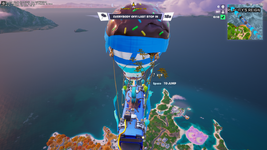
Screenshot from game showing Wallhack/ESP:
fortnite dma cheat wallhack and esp.png1.webp
fortnite dma cheat wallhack and esp.webp

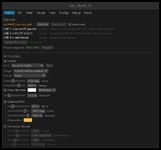
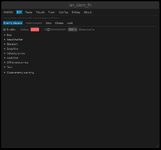
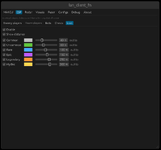
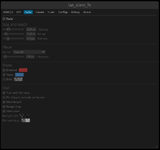
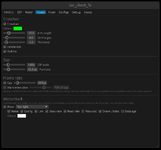
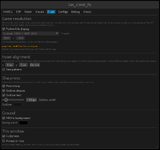
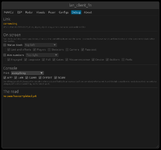
Menu showcase:
1792262586291.webp
1792262600101.webp
1792262616686.webp
1792262627448.webp
1792262638382.webp
1792262654189.webp
1792262663806.webp
1792262674229.webp

Features list:

1. Visuals & ESP​

Target Categories:
  • Enemy Players (Human opponents)
  • Friendly / Squad Teammates
  • AI Bots (Dedicated separate group filter for filler bots)
  • Downed Players (DBNO - Down But Not Out state & dying timers)
  • World Containers & Chests (Standard Chests, Rare Chests, Ammo Boxes, Safes, Supply Drops)
ESP Render Styles & Indicators:
  • 2D Bounding Boxes (Corners, Full Rectangle, Filled translucent background)
  • 3D Bone / Skeleton ESP (Joint tracking when mesh is active)
  • Head Dot / Marker (Capsule-aligned head positioning)
  • Snaplines / Tracers (Bottom, Crosshair / Center, Top screen origins)
  • Velocity Vector Arrow (Real-time movement heading and horizontal speed vector)
  • Look Direction Line (Gaze vector showing enemy facing direction)
  • FOV Cone Arrow (Directional screen-edge indicator for off-screen enemies)
  • Loot Rarity Colors (Common, Uncommon, Rare, Epic, Legendary, Mythic)
  • Group Color Customization (Independent color palettes for Enemies, Teammates, and Bots)
On-Screen Information Tags:
  • Player Display Name
  • Distance to Target (Metres to feet)
  • Battle Pass / Season Level
  • Match Eliminations (Kill count this match)
  • Horizontal Movement Speed (m/s)
  • Stance (Standing vs. Crouched)
  • Downed Condition (DBNO / Revive state)
  • Aim Target Highlight Marker
  • Chest / Container Rarity & Type Label

2. Threat Alerts & Warnings​

  • Proximity Warning: Detects the closest enemy within range with an on-screen warning banner, distance, and directional arrow.
  • Off-Screen Threat Bearing: Screen-edge arrows tracking the bearing of approaching players outside your current field of view.

3. 2D Radar​

  • Top-Down Minimap Radar: Displays surrounding players, squadmates, and bots on a 2D dial.
  • Relative Elevation Indicators: Directional markers showing whether targets are positioned above or below your altitude.
  • Orientation Modes: Camera-aligned (rotating dynamically with view) or fixed map-aligned orientation.
  • Customizable Display: Adjustable radar radius, zoom factor, screen positioning, and background opacity.

4. Hardware Aimbot & Mouse Control (MAKCU)​

  • Hardware Mouse Emulation: Physical USB/serial mouse input via external MAKCU microcontroller (100% external hardware input, zero software mouse events on the Game PC).
  • Target Selection & Prioritization: Crosshair FOV, Distance, or Smart Hybrid (blending distance with crosshair error).
  • Target Aim Points: Head or dynamic Capsule height.
  • Humanized Smoothing: Multi-stage acceleration curves, natural muscle tremor emulation, and reaction delays.
  • Distance-Adaptive FOV Bands: Dynamic pull strength and FOV cone scaling relative to target range.
  • Visual Overlay: On-screen FOV circle and active lock indicator.

Instruction:

Option 1: LAN Mode (Poor DMA - 2 PCs over Network)​

Use this if you do not have a physical DMA card. Both computers must be connected to the same local network / subnet.
Step 1 - On the Game PC:

  1. Launch Fortnite.
  2. Open an Administrator Command Prompt or PowerShell.
  3. Run the server (must be launched after the game):
    Code:
    Expand Collapse Copy
    poor_dma_server.exe
Step 2 - On the Client PC (Secondary PC):
  1. Run the client:
    Code:
    Expand Collapse Copy
    lan_client_fn.exe
  2. (Optional) If automatic network discovery fails to find the Game PC, specify its IP address manually:
    Code:
    Expand Collapse Copy
    set POOR_DMA_PEER=192.168.1.xxx
     lan_client_fn.exe

Option 2: Hardware DMA Mode (PCIe FPGA Card)​

Use this if you have a physical FPGA PCIe card (e.g., Captain, Enigma, Lambda, LeechCore).
Hardware Setup:

  • Install the DMA card into a PCIe slot on the Game PC.
  • Connect the USB 3.0 data cable from the DMA card to the Client PC.
  • Place the PCILeech DLLs (vmm.dll, leechcore.dll, FTD3XX.dll, and dbghelp.dll) directly in the same folder as lan_client_fn.exe (or inside a DMA DLLs\ subfolder).
Step 1 - On the Game PC:
  1. Power on the system and launch Fortnite.
Step 2 - On the Client PC:
  1. Run the client with the -dma flag:
    Code:
    Expand Collapse Copy
    lan_client_fn.exe -dma

Display & Hardware Mouse Setup (Both Modes)​

  • Video Fuser (Overlay): Plug the HDMI output from the Game PC and the HDMI output from the Client PC into an HDMI Video Fuser. The client renders as a transparent borderless fullscreen window keyed over the game.
  • Aimbot Mouse (MAKCU - Optional): Plug the MAKCU device into the Game PC via USB, and connect its COM/serial data cable to the Client PC. The client will auto-detect the serial port on startup.

OFFSETS UPDATING!!!
If offsets are outdated (if you're reading this, they probably are, since I won't update them), you can update them yourself with this agentic dumper:
The only thing you need to do is ask AI to check one .md file, and it will update the offsets for you using DMA or Poor DMA, offsets are in the file offsets.toml, the only think you should do is to specify method of reading memory and where is file with offsets to update.
IF YOU UPDATE THEM YOURSELF SHARE THEM HERE FOR OTHER PEOPLE AS REPLAY BELOW WITH DATE!!!

Troubleshooting

In case of any bugs, or problems while using this cheat, don't forget to paste log in replay and additionally in details explain what is the issue, and if there is such possibility include image, in that case I can HELP, if you are going to write that there is SOME bug and you can't even clarify what it is, you will be ignored.
 

Password for .zip file is hvh.net

Last edited:
  • Like
Reactions: Nephilimz
Safe file: no malicious activity detected, safe to use
 
Something for battlefield 6 would be cool using the same concept
The hardest part is reading physical memory, this issue is currently solved with Poor DMA, you can use it to find BF6 process, and then AI will do reversing finding all offsets and then using local camera and positions of the enemy for esp and for that you have to use world to screen, and then display everything, try it with the latest deepseek, should be working and it won't refuse
 
can we get the full sourse code?
maybe I'll free it soon, but if I keep it in this way, I'll get more people visit this subforum, and this is my goal, but if u wish to make own version you can run it in ida pro, and AI with mcp server can fully reverse it and then u can make your own copy
 
maybe I'll free it soon, but if I keep it in this way, I'll get more people visit this subforum, and this is my goal, but if u wish to make own version you can run it in ida pro, and AI with mcp server can fully reverse it and then u can make your own copy
Can you send it to me? I want to test something new for FN Projects because no one has ever made a DMA cheat for it, so now I need a DMA source for FN.
 
Hello again!

Today I'm release another DMA/Poor DMA cheat, but this time we are talking about Fortnite. But at first I would like to clarify that this is DMA cheat, but it can be also used as External cheat if we were to use my technology that I called Poor DMA on the same computer, but in such case there is risk of getting ban due to overlay on the game, everything what you need to know regarding this approach is located under this link, a lot of reading but worth it, thus below link is about Poor DMA, for people without DMA cards.
Ah, the best part of Poor DMA is think that you don't need any type of IOMMU bypass for Fortnite, since we don't use device but trusted windows kernel driver from Microsoft itself! Thus if you don't have IOMMU bypass, Poor DMA is perfect for you, but then using fuser is recommended!!!

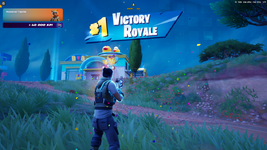
Screenshot from game showing Wallhack/ESP:
fortnite dma cheat wallhack and esp.png1.webp
fortnite dma cheat wallhack and esp.webp

Menu showcase:
1792262586291.webp
1792262600101.webp
1792262616686.webp
1792262627448.webp
1792262638382.webp
1792262654189.webp
1792262663806.webp
1792262674229.webp

Features list:

1. Visuals & ESP​

Target Categories:
  • Enemy Players (Human opponents)
  • Friendly / Squad Teammates
  • AI Bots (Dedicated separate group filter for filler bots)
  • Downed Players (DBNO - Down But Not Out state & dying timers)
  • World Containers & Chests (Standard Chests, Rare Chests, Ammo Boxes, Safes, Supply Drops)
ESP Render Styles & Indicators:
  • 2D Bounding Boxes (Corners, Full Rectangle, Filled translucent background)
  • 3D Bone / Skeleton ESP (Joint tracking when mesh is active)
  • Head Dot / Marker (Capsule-aligned head positioning)
  • Snaplines / Tracers (Bottom, Crosshair / Center, Top screen origins)
  • Velocity Vector Arrow (Real-time movement heading and horizontal speed vector)
  • Look Direction Line (Gaze vector showing enemy facing direction)
  • FOV Cone Arrow (Directional screen-edge indicator for off-screen enemies)
  • Loot Rarity Colors (Common, Uncommon, Rare, Epic, Legendary, Mythic)
  • Group Color Customization (Independent color palettes for Enemies, Teammates, and Bots)
On-Screen Information Tags:
  • Player Display Name
  • Distance to Target (Metres to feet)
  • Battle Pass / Season Level
  • Match Eliminations (Kill count this match)
  • Horizontal Movement Speed (m/s)
  • Stance (Standing vs. Crouched)
  • Downed Condition (DBNO / Revive state)
  • Aim Target Highlight Marker
  • Chest / Container Rarity & Type Label

2. Threat Alerts & Warnings​

  • Proximity Warning: Detects the closest enemy within range with an on-screen warning banner, distance, and directional arrow.
  • Off-Screen Threat Bearing: Screen-edge arrows tracking the bearing of approaching players outside your current field of view.

3. 2D Radar​

  • Top-Down Minimap Radar: Displays surrounding players, squadmates, and bots on a 2D dial.
  • Relative Elevation Indicators: Directional markers showing whether targets are positioned above or below your altitude.
  • Orientation Modes: Camera-aligned (rotating dynamically with view) or fixed map-aligned orientation.
  • Customizable Display: Adjustable radar radius, zoom factor, screen positioning, and background opacity.

4. Hardware Aimbot & Mouse Control (MAKCU)​

  • Hardware Mouse Emulation: Physical USB/serial mouse input via external MAKCU microcontroller (100% external hardware input, zero software mouse events on the Game PC).
  • Target Selection & Prioritization: Crosshair FOV, Distance, or Smart Hybrid (blending distance with crosshair error).
  • Target Aim Points: Head or dynamic Capsule height.
  • Humanized Smoothing: Multi-stage acceleration curves, natural muscle tremor emulation, and reaction delays.
  • Distance-Adaptive FOV Bands: Dynamic pull strength and FOV cone scaling relative to target range.
  • Visual Overlay: On-screen FOV circle and active lock indicator.

Instruction:

Option 1: LAN Mode (Poor DMA - 2 PCs over Network)​

Use this if you do not have a physical DMA card. Both computers must be connected to the same local network / subnet.
Step 1 - On the Game PC:

  1. Launch Fortnite.
  2. Open an Administrator Command Prompt or PowerShell.
  3. Run the server (must be launched after the game):
    Code:
    Expand Collapse Copy
    poor_dma_server.exe
Step 2 - On the Client PC (Secondary PC):
  1. Run the client:
    Code:
    Expand Collapse Copy
    lan_client_fn.exe
  2. (Optional) If automatic network discovery fails to find the Game PC, specify its IP address manually:
    Code:
    Expand Collapse Copy
    set POOR_DMA_PEER=192.168.1.xxx
     lan_client_fn.exe

Option 2: Hardware DMA Mode (PCIe FPGA Card)​

Use this if you have a physical FPGA PCIe card (e.g., Captain, Enigma, Lambda, LeechCore).
Hardware Setup:

  • Install the DMA card into a PCIe slot on the Game PC.
  • Connect the USB 3.0 data cable from the DMA card to the Client PC.
  • Place the PCILeech DLLs (vmm.dll, leechcore.dll, FTD3XX.dll, and dbghelp.dll) directly in the same folder as lan_client_fn.exe (or inside a DMA DLLs\ subfolder).
Step 1 - On the Game PC:
  1. Power on the system and launch Fortnite.
Step 2 - On the Client PC:
  1. Run the client with the -dma flag:
    Code:
    Expand Collapse Copy
    lan_client_fn.exe -dma

Display & Hardware Mouse Setup (Both Modes)​

  • Video Fuser (Overlay): Plug the HDMI output from the Game PC and the HDMI output from the Client PC into an HDMI Video Fuser. The client renders as a transparent borderless fullscreen window keyed over the game.
  • Aimbot Mouse (MAKCU - Optional): Plug the MAKCU device into the Game PC via USB, and connect its COM/serial data cable to the Client PC. The client will auto-detect the serial port on startup.

OFFSETS UPDATING!!!
If offsets are outdated (if you're reading this, they probably are, since I won't update them), you can update them yourself with this agentic dumper:
The only thing you need to do is ask AI to check one .md file, and it will update the offsets for you using DMA or Poor DMA, offsets are in the file offsets.toml, the only think you should do is to specify method of reading memory and where is file with offsets to update.
IF YOU UPDATE THEM YOURSELF SHARE THEM HERE FOR OTHER PEOPLE AS REPLAY BELOW WITH DATE!!!

Troubleshooting

In case of any bugs, or problems while using this cheat, don't forget to paste log in replay and additionally in details explain what is the issue, and if there is such possibility include image, in that case I can HELP, if you are going to write that there is SOME bug and you can't even clarify what it is, you will be ignored.
Hi King Waiting Valorant
 
Hi King Waiting Valorant
Valorant is using hypervisor based anti cheats (ring -1), but idk how is it working yet, I know that there are some methods, but currently I don't even know how can I read physical memory in such case, so you have to wait, and maybe one day I'll be interested to learn it.
 
Hello again!

Today I'm release another DMA/Poor DMA cheat, but this time we are talking about Fortnite. But at first I would like to clarify that this is DMA cheat, but it can be also used as External cheat if we were to use my technology that I called Poor DMA on the same computer, but in such case there is risk of getting ban due to overlay on the game, everything what you need to know regarding this approach is located under this link, a lot of reading but worth it, thus below link is about Poor DMA, for people without DMA cards.
Ah, the best part of Poor DMA is think that you don't need any type of IOMMU bypass for Fortnite, since we don't use device but trusted windows kernel driver from Microsoft itself! Thus if you don't have IOMMU bypass, Poor DMA is perfect for you, but then using fuser is recommended!!!

Screenshot from game showing Wallhack/ESP:
fortnite dma cheat wallhack and esp.png1.webp
fortnite dma cheat wallhack and esp.webp

Menu showcase:
1792262586291.webp
1792262600101.webp
1792262616686.webp
1792262627448.webp
1792262638382.webp
1792262654189.webp
1792262663806.webp
1792262674229.webp

Features list:

1. Visuals & ESP​

Target Categories:
  • Enemy Players (Human opponents)
  • Friendly / Squad Teammates
  • AI Bots (Dedicated separate group filter for filler bots)
  • Downed Players (DBNO - Down But Not Out state & dying timers)
  • World Containers & Chests (Standard Chests, Rare Chests, Ammo Boxes, Safes, Supply Drops)
ESP Render Styles & Indicators:
  • 2D Bounding Boxes (Corners, Full Rectangle, Filled translucent background)
  • 3D Bone / Skeleton ESP (Joint tracking when mesh is active)
  • Head Dot / Marker (Capsule-aligned head positioning)
  • Snaplines / Tracers (Bottom, Crosshair / Center, Top screen origins)
  • Velocity Vector Arrow (Real-time movement heading and horizontal speed vector)
  • Look Direction Line (Gaze vector showing enemy facing direction)
  • FOV Cone Arrow (Directional screen-edge indicator for off-screen enemies)
  • Loot Rarity Colors (Common, Uncommon, Rare, Epic, Legendary, Mythic)
  • Group Color Customization (Independent color palettes for Enemies, Teammates, and Bots)
On-Screen Information Tags:
  • Player Display Name
  • Distance to Target (Metres to feet)
  • Battle Pass / Season Level
  • Match Eliminations (Kill count this match)
  • Horizontal Movement Speed (m/s)
  • Stance (Standing vs. Crouched)
  • Downed Condition (DBNO / Revive state)
  • Aim Target Highlight Marker
  • Chest / Container Rarity & Type Label

2. Threat Alerts & Warnings​

  • Proximity Warning: Detects the closest enemy within range with an on-screen warning banner, distance, and directional arrow.
  • Off-Screen Threat Bearing: Screen-edge arrows tracking the bearing of approaching players outside your current field of view.

3. 2D Radar​

  • Top-Down Minimap Radar: Displays surrounding players, squadmates, and bots on a 2D dial.
  • Relative Elevation Indicators: Directional markers showing whether targets are positioned above or below your altitude.
  • Orientation Modes: Camera-aligned (rotating dynamically with view) or fixed map-aligned orientation.
  • Customizable Display: Adjustable radar radius, zoom factor, screen positioning, and background opacity.

4. Hardware Aimbot & Mouse Control (MAKCU)​

  • Hardware Mouse Emulation: Physical USB/serial mouse input via external MAKCU microcontroller (100% external hardware input, zero software mouse events on the Game PC).
  • Target Selection & Prioritization: Crosshair FOV, Distance, or Smart Hybrid (blending distance with crosshair error).
  • Target Aim Points: Head or dynamic Capsule height.
  • Humanized Smoothing: Multi-stage acceleration curves, natural muscle tremor emulation, and reaction delays.
  • Distance-Adaptive FOV Bands: Dynamic pull strength and FOV cone scaling relative to target range.
  • Visual Overlay: On-screen FOV circle and active lock indicator.

Instruction:

Option 1: LAN Mode (Poor DMA - 2 PCs over Network)​

Use this if you do not have a physical DMA card. Both computers must be connected to the same local network / subnet.
Step 1 - On the Game PC:

  1. Launch Fortnite.
  2. Open an Administrator Command Prompt or PowerShell.
  3. Run the server (must be launched after the game):
    Code:
    Expand Collapse Copy
    poor_dma_server.exe
Step 2 - On the Client PC (Secondary PC):
  1. Run the client:
    Code:
    Expand Collapse Copy
    lan_client_fn.exe
  2. (Optional) If automatic network discovery fails to find the Game PC, specify its IP address manually:
    Code:
    Expand Collapse Copy
    set POOR_DMA_PEER=192.168.1.xxx
     lan_client_fn.exe

Option 2: Hardware DMA Mode (PCIe FPGA Card)​

Use this if you have a physical FPGA PCIe card (e.g., Captain, Enigma, Lambda, LeechCore).
Hardware Setup:

  • Install the DMA card into a PCIe slot on the Game PC.
  • Connect the USB 3.0 data cable from the DMA card to the Client PC.
  • Place the PCILeech DLLs (vmm.dll, leechcore.dll, FTD3XX.dll, and dbghelp.dll) directly in the same folder as lan_client_fn.exe (or inside a DMA DLLs\ subfolder).
Step 1 - On the Game PC:
  1. Power on the system and launch Fortnite.
Step 2 - On the Client PC:
  1. Run the client with the -dma flag:
    Code:
    Expand Collapse Copy
    lan_client_fn.exe -dma

Display & Hardware Mouse Setup (Both Modes)​

  • Video Fuser (Overlay): Plug the HDMI output from the Game PC and the HDMI output from the Client PC into an HDMI Video Fuser. The client renders as a transparent borderless fullscreen window keyed over the game.
  • Aimbot Mouse (MAKCU - Optional): Plug the MAKCU device into the Game PC via USB, and connect its COM/serial data cable to the Client PC. The client will auto-detect the serial port on startup.

OFFSETS UPDATING!!!
If offsets are outdated (if you're reading this, they probably are, since I won't update them), you can update them yourself with this agentic dumper:
The only thing you need to do is ask AI to check one .md file, and it will update the offsets for you using DMA or Poor DMA, offsets are in the file offsets.toml, the only think you should do is to specify method of reading memory and where is file with offsets to update.
IF YOU UPDATE THEM YOURSELF SHARE THEM HERE FOR OTHER PEOPLE AS REPLAY BELOW WITH DATE!!!

Troubleshooting

In case of any bugs, or problems while using this cheat, don't forget to paste log in replay and additionally in details explain what is the issue, and if there is such possibility include image, in that case I can HELP, if you are going to write that there is SOME bug and you can't even clarify what it is, you will be ignored.
for actual dma did u use firmware when testing?
 

Who has read this thread (Total: 0) in last 1 hours View details