Hello my people!
Today I would like to share one of my cheats that I vibe coded (there will be more ), at first I would like to clarify that this is DMA cheat, but it can be also used as External cheat if we were to use my technology that I called Poor DMA, everything what you need to know regarding this approach is located under this link:
While important things is that, there is no possibility to use write with Poor DMA, thus you can have only read functions there, so you can't use no spread, magic bullet etc...
This is the fun part, magic bullet showcase (only DMA, no poor DMA):
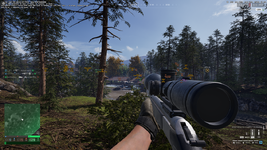
Screenshot from game showing Wallhack/ESP:
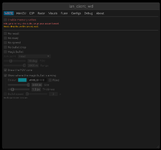
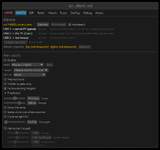
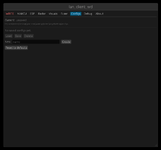
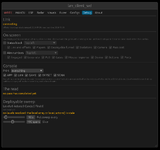
Menu showcase:
Features list:
Instruction:
Step 1 - On the Game PC:
Hardware Setup:
OFFSETS UPDATING!!!
If offsets are outdated (if you're reading this, they probably are, since I won't update them), you can update them yourself with this agentic dumper:
The only thing you need to do is ask AI to check one .md file, and it will update the offsets for you using DMA or Poor DMA, offsets are in the file offsets.toml, the only think you should do is to specify method of reading memory and where is file with offsets to update.
IF YOU UPDATE THEM YOURSELF SHARE THEM HERE FOR OTHER PEOPLE AS REPLAY BELOW WITH DATE!!!
Troubleshooting
In case of any bugs, or problems while using this cheat, don't forget to paste log in replay and additionally in details explain what is the issue, and if there is such possibility include image, in that case I can HELP, if you are going to write that there is SOME bug and you can't even clarify what it is, you will be ignored.
Today I would like to share one of my cheats that I vibe coded (there will be more
), at first I would like to clarify that this is DMA cheat, but it can be also used as External cheat if we were to use my technology that I called Poor DMA, everything what you need to know regarding this approach is located under this link:Description
Poor DMA can be seen as an alternative to real DMA cards where you do not need custom firmware to bypass anti-cheats. It is important to mention that Poor DMA in its current state primarily relies on reading physical memory, though it can also be expanded to read virtual memory. For the purpose of reading memory and performing initial kernel address translation via CR3, Poor DMA abuses a Windows driver namedKslD.sys, which is a legitimate component of Windows Defender. Specifically, this driver is used for low-level diagnostic operations such as arbitrary...- Plisskien
- Replies: 16
- Forum: DMA Cheats/Software

This is the fun part, magic bullet showcase (only DMA, no poor DMA):
You must be registered for see links
Screenshot from game showing Wallhack/ESP:
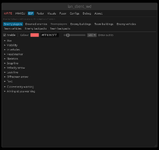
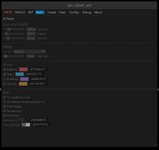
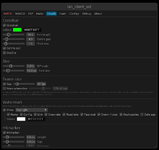
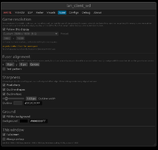
Menu showcase:
Features list:
1. Visuals & ESP
Target Categories:- Enemy Players
- Friendly / Team Players
- Downed & Bleeding-Out Enemies
- Enemy & Friendly Vehicles
- Enemy & Friendly Deployables / Structures (FOBs, Radios, Emplacements, Walls)
- Dropped Backpacks / Loot
- 2D Bounding Boxes (Corners, Full, Filled)
- 3D Bone / Skeleton ESP (Real-time tracking of 23 humanoid joints)
- 3D Vehicle & Deployable Bounds (Fitted to Unreal Engine world bounds)
- Head Dot (Positioned on head bone)
- Health Bars (Solid or segmented)
- Snaplines / Tracers (Top, Center, Bottom screen origins)
- Velocity Arrow (Movement heading and speed vector)
- Look Direction Line (Gaze vector showing enemy aim direction)
- FOV Cone Arrow (Field of view directional indicator)
- Visibility Checks (Visible vs. occluded target differentiation)
- Player Name & Entity Classification
- Distance to Target
- Movement Speed
- Movement Stance (Ladder, Swimming, Parachute, Dragging)
- Action State (Aiming, Reloading, Sprinting, Leaning, Bipod, Reviving)
- Vehicle Seat Position (Driver, Passenger, Gunner)
- Downed Status & Bleed-Out Timer
- Held Weapon Name
- Piece-by-Piece Armor Condition
- Full Equipment / Loadout List
- Map Zone (Safe Zone, Objective, Out-of-Bounds)
- Match Scoreboard Stats (Kills, Deaths, Assists, Revives)
- Team Alignment Marker ([E] / [F])
2. Threat Alerts & Warnings
- Proximity Warning: Detects the closest enemy within range with an on-screen directional arrow and distance banner.
- Aimed-At Warning: Alerts when an enemy is looking/aiming down sights directly at you, showing threat count and bearing.
- Hitmarker: Screen hit confirmation indicator on dealt damage, with separate kill confirmation.
3. 2D Radar
- Top-Down Minimap Radar: Displays surrounding players, vehicles, and structures on a 2D dial.
- Relative Elevation Indicators: Directional markers for targets above or below player height.
- Orientation Modes: Rotating (camera-aligned) or fixed map orientation.
4. Hardware Aimbot & Mouse Control (MAKCU)
- Hardware Mouse Emulation: Physical USB/serial mouse input via external MAKCU microcontroller (no software mouse events on game PC).
- Target Selection & Prioritization: Crosshair FOV, Distance, or Smart priority.
- Target Bones: Head, Neck, Chest, Pelvis, or dynamic Nearest Bone.
- Ballistic & Motion Prediction: Full bullet drop and target velocity lead compensation.
- Humanized Smoothing: Bezier acceleration curves, simulated overshoot, muscle tremor, and reaction time delays.
- Distance-Adaptive FOV: Dynamic cone and pull scaling relative to target distance.
- Rapid Fire: Automated semi-automatic trigger cycling.
- Visuals: On-screen FOV circle and target lock indicator.
5. Memory Write Modifiers (DMA Mode Only)
(<Requires FPGA DMA transport and armed safety kill-switch>)- No Recoil: Eliminates weapon kick and recoil patterns.
- No Sway: Removes breathing and stance sway multipliers.
- No Spread: Forces zero weapon bullet spread angle.
- No Drop: Disables projectile gravity drop.
- Bullet Speed Multiplier: Increases projectile launch velocity.
- Magic Bullet: Redirects/teleports fired projectiles directly to enemy hitboxes within a customizable FOV cone.
Instruction:
Option 1: LAN Mode (Poor DMA - 2 PCs over Network)
Use this if you do not have a physical DMA card. Both computers must be connected to the same local network / subnet.Step 1 - On the Game PC:
- Launch Wardogs.
- Open an Administrator Command Prompt or PowerShell.
- Run the server (must be launched after the game):
Code:poor_dma_server.exe
- Run the client:
Code:lan_client_wd.exe - (Optional) If automatic network discovery fails to find the Game PC, specify its IP address manually:
Code:set POOR_DMA_SERVER=192.168.1.xxx lan_client_wd.exe
Option 2: Hardware DMA Mode (PCIe FPGA Card)
Use this if you have a physical FPGA PCIe card (e.g., Captain, Enigma, Lambda, LeechCore).Hardware Setup:
- Install the DMA card into a PCIe slot on the Game PC.
- Connect the USB 3.0 data cable from the DMA card to the Client PC.
- Place the PCILeech DLLs (
vmm.dll,leechcore.dll,FTD3XX.dll, anddbghelp.dll) directly in the same folder aslan_client_wd.exe(or inside aDMA DLLs\subfolder).
- Power on the system and launch Wardogs.
- Run the client with the
-dmaflag:
Code:lan_client_wd.exe -dma
Display & Hardware Mouse Setup (Both Modes)
- Video Fuser (Overlay): Plug the HDMI output from the Game PC and the HDMI output from the Client PC into an HDMI Video Fuser. The client renders as a transparent borderless fullscreen window keyed over the game.
- Aimbot Mouse (MAKCU - Optional): Plug the MAKCU device into the Game PC via USB, and connect its COM/serial data cable to the Client PC. The client will auto-detect the serial port on startup.
OFFSETS UPDATING!!!
If offsets are outdated (if you're reading this, they probably are, since I won't update them), you can update them yourself with this agentic dumper:
Hello forum,
This is part of my project, which is connected with Poor DMA, while the main objective of this project is to be used with the thread in question:
There is a fully free and working DMA/Poor DMA cheat for Wardogs.
Of course, in the case of any game update, there is a need to update the offsets. In that case, this dumper needs to be used. It can additionally be used to make your own cheat. It is also called...
This is part of my project, which is connected with Poor DMA, while the main objective of this project is to be used with the thread in question:
There is a fully free and working DMA/Poor DMA cheat for Wardogs.
Of course, in the case of any game update, there is a need to update the offsets. In that case, this dumper needs to be used. It can additionally be used to make your own cheat. It is also called...
- Plisskien
- Replies: 4
- Forum: Prompts for AI
IF YOU UPDATE THEM YOURSELF SHARE THEM HERE FOR OTHER PEOPLE AS REPLAY BELOW WITH DATE!!!
Troubleshooting
In case of any bugs, or problems while using this cheat, don't forget to paste log in replay and additionally in details explain what is the issue, and if there is such possibility include image, in that case I can HELP, if you are going to write that there is SOME bug and you can't even clarify what it is, you will be ignored.
Password for .zip file is hvh.net
Last edited: